HOW TO SET CAMERA RESOLUTIONS FOR RECORDING


Security cameras provide settings to lower or increase the resolution. This option is essential when you want to save hard drive space or lower the camera’s resolution to match the recording equipment’s capabilities. Whatever your reason, you can perform this modification in several easy steps.

But first, explore the meaning of resolution and the different types below.
1

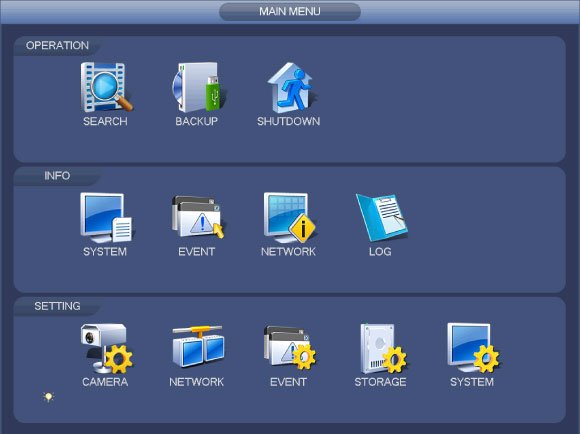
Open Camera Settings

Select Camera from the Setting section on the machine’s Main Menu.

2

Go to Encode

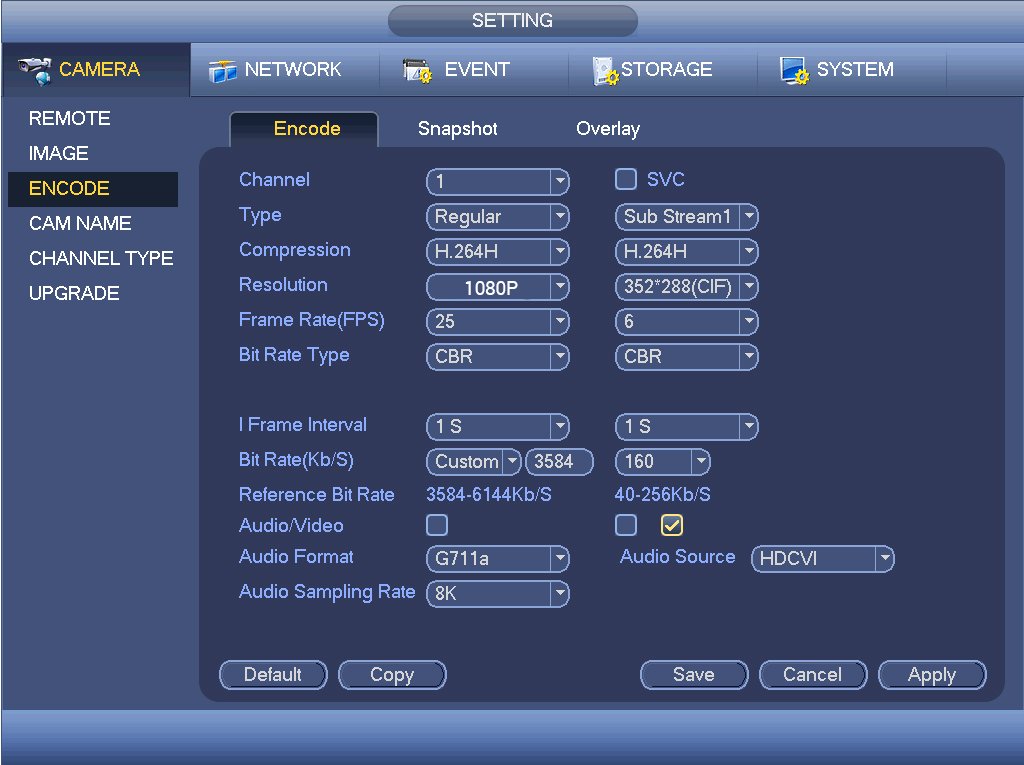
Under the Camera Settings interface, use the right side navigation to select “Encode”. This interface allows the user to:

  • Select the Channel (camera) being programmed / encoded
  • Choose the Type of recording (Regular (continuous), MD (motion detection) or Alarm)
  • Compression rate
  • Camera Resolution (directly linked to the Type selected of which settings can be adjusted for each, simultaneously)
  • Adjust the Frame Rate – useful for having 1080P HD-over-Coax cameras running @ 15fps on a 720P DVR
  • Select the Bit Rate Type
  • Frame Interval
  • Bit Rate (Kb/s)
  • Camera Audio information

Note:

The user can define specific settings for each Type (Regular / Motion Detection / Alarm) for each camera.

3

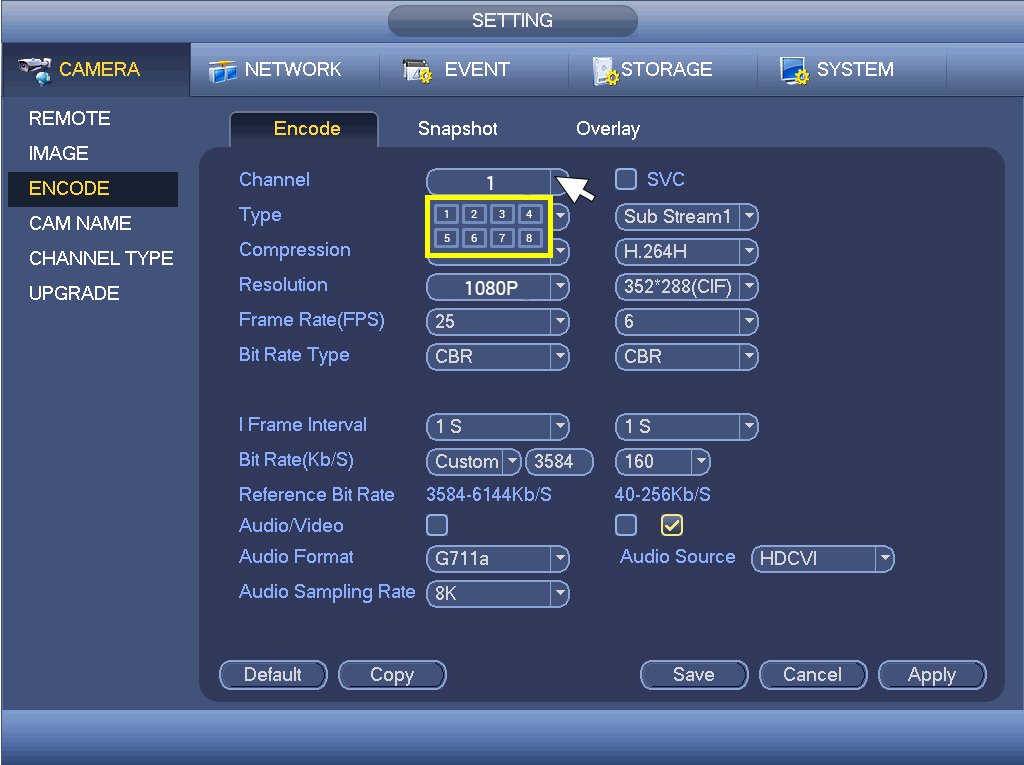
Select the Channel / Camera

Use the Channel drop down menu to select which camera you are programming.
4

Choose the Camera Recording Type to Adjust

Choose from Regular (continuous recording), MD (motion detection) or Alarm.
5

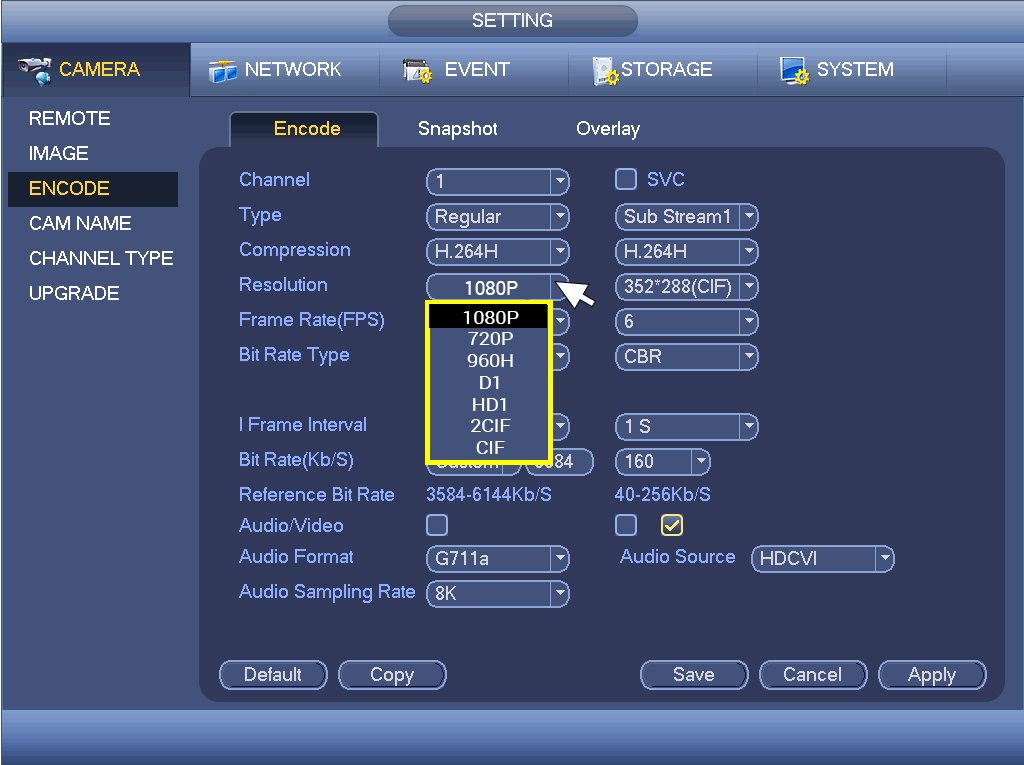
Choose the Resolution

Select which resolution you want your camera to be set for during the type of recording selected above (continuous, motion detection or alarm).
6

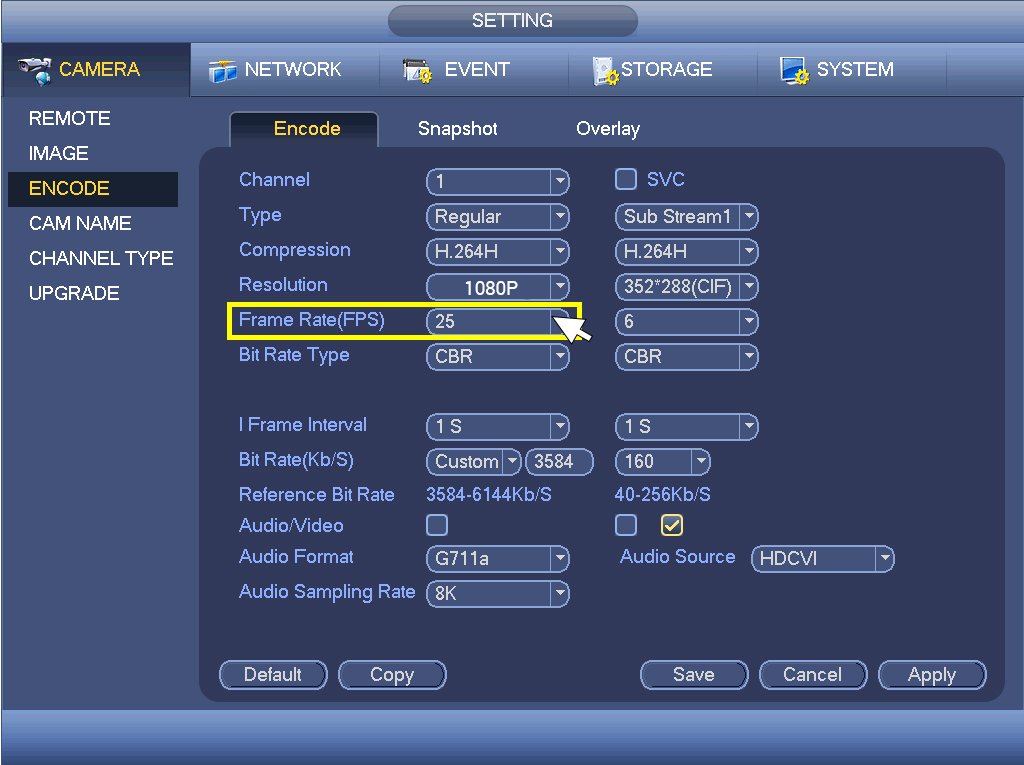
Choose the Frame Rate

If your surveillance system consists of 1080P / 2.0+ Megapixel cameras connected to a HD-over-Coax or Tribrid DVR that will record 1080P at 15fps, select 15. Note: 25 / 30fps is considered Real Time.

Repeat Steps 3-6

Go back to step 3 and repeat steps 3-6 for each camera on your system. Do not use the “Copy” function. You must do this for each channel. Screenshots were taken from a HDVR41080-T Tribrid DVR.

What Is Security Camera Resolution?

A closed-circuit television (CCTV) camera’s resolution indicates the number of pixels that create an image. A pixel or picture element is a value for measuring resolution. It represents the smallest unit of a digital image that someone can manipulate using software.

The higher the number of pixels, the higher the resolution, which in turn produces more detailed images. For instance, a 720p CCTV camera measures 1,280 pixels wide and 720 pixels high. Multiplied, these pixels make up 921,600 pixels per frame, compared to 2,073,600 pixels per frame in 1080p equipment. The latter resolution offers better detail and clarity.

While higher resolutions offer greater clarity, they also require more storage space. If your application allows it, drop the resolution to enable longer backup times.

What Is the Best Resolution for a Security Camera?

The best resolution for a CCTV camera depends on the use case. Here is an overview of several resolution types you could encounter when changing settings:

4K

4K or ultra-high-definition (UHD) resolution is ideal for capturing facial details, license number plates, and the fine data of expansive outdoor areas. 4K resolution in HD-over-coax cameras is 3,840 pixels wide and 2,160 pixels high, while 4K internet protocol (IP) cameras are 4,000 pixels by 3,000 pixels.

4MP

4MP resolution produces clearer and more detailed video images than 1080p and 720p. Its pixel size is 2,688 in width and 1,520 in height. 4MP security cameras can monitor medium-sized outdoor areas.

1080p

1080p or full HD resolution has 1,920 pixels in width and 1,080 pixels in height. It provides a good balance between video quality and storage saving. Consider 1080p for general monitoring applications of outdoor and indoor areas where fine details are not vital.

720p

720p or HD resolution measures 1,280 pixels in width and 720 in height. It is less detailed than the 1080p resolution but can be used for monitoring front doors and other small areas.

How to Change CCTV Camera Resolution

CCTV settings allow you to set the desired resolution based on your needs. Follow this step-by-step process to modify this feature.

  • Open the device’s software in your browser to access the main menu.
  • Next, open camera settings and choose the “Encode” option.
  • In the channel section, pick the camera whose resolution you wish to change.
  • Select the recording type that can help you save on bandwidth. These types include regular or continuous, motion detection (MD), and alarm.
  • Set a compression rate compatible with your camera’s and recorder’s capabilities. We recommend using H.264, as it is simpler to decode when backing up footage.
  • Choose your desired resolution. The options in the dropdown will depend on your camera’s and recorder’s abilities.
  • Adjust the frame per second (FPS) rate depending on how fluid you want your video images to appear. If you are using a digital video recorder (DVR), select the compatible FPS rate.
  • Next, select the bit rate type. To maintain good-quality video images, we recommend a constant bit rate (CBR). The bit rate (Kb/s) controls the amount of data the camera system writes to the recorder per second. The rate you set should work well with your desired resolution to enable you to receive good-quality videos and still save on storage capacity.
  • Hit “Apply” and repeat the same steps to change the resolution for the other cameras.

Frequently Asked Questions About CCTV Camera Resolution

Explore a few common questions regarding security camera resolutions and their answers.

What Does “p” in 1080p Stand For?

The “p” represents progressive scanning, a video display format that draws each video frame line from top to bottom.

What Is the Meaning of FPS?

The frames per second rate indicates the number of images a camera captures each second. High rates produce smooth videos.

Is 3MP Better Than 1080p?

Yes! A 3MP resolution measures 2,048 pixels wide and 1,536 pixels high, providing better clarity and detail than 1080p. It works well for indoor and outdoor applications.

What Is the Quality of a 2MP Security Camera?

With a 1,600-pixel by 1,200-pixel size, the 2MP resolution offers more detail than a 720p resolution security camera. It is suitable for indoor use.

What MP Size Is 4K?

The resolution for 4K HD-over-coax cameras is 8MP, while the 4K IP resolution is 12 MP.

Access High-Quality Security Cameras From Optiview

Optiview designs, manufactures, and distributes innovative security cameras for any application. Our devices feature a wide range of resolutions and the settings to adjust them as necessary. We offer one-on-one product training to demonstrate how to navigate the camera system software, including changing security camera resolutions. Our experts also provide ongoing support to answer any other questions you may have.

Call us at 904-805-1581 to speak with us about your security camera needs.

Access High-Quality Security Cameras From Optiview